
Start with “Check that the screen is dry and the protector is not lifting”
Do not begin with a broad reset. Check the following first so you can isolate the problem and avoid unnecessary data loss or reconfiguration.
- Check that the screen is dry and the protector is not lifting
- Use the pad of your finger rather than a fingernail
- Test another area or app to see whether the issue is general
Understand which layer owns the behavior
Change one condition and retest
Work from the top and stop as soon as the issue is resolved. Read every confirmation screen before moving to a higher-impact action.
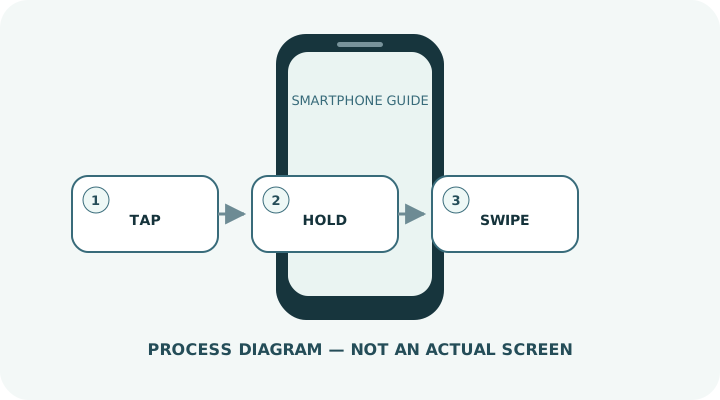
- 1Tap once lightly; pressing harder normally does not help.
- 2Long-press the same spot for about a second, then release when a menu or edit mode appears.
- 3Swipe while keeping contact with the screen to move a list or page.
- 4Spread two fingers to zoom in and pinch them together to zoom out.
- 5To drag, long-press an item and move it without lifting your finger.
Do not erase the evidence before isolating the cause
- Repeated taps can trigger the same action more than once
- Long-pressing a link by accident while scrolling
- Assuming a fault when a page simply does not support zoom
Prepare for a faster diagnosis next time
- Pause and read the screen before confirming important actions
- Change touch-sensitivity settings only when needed, such as with a screen protector
Frequently asked questions
What if my screen looks different?
Labels and locations vary by OS, manufacturer, model and region. Use Settings search and check the manufacturer’s model-specific instructions.
What if I am unsure partway through?
Go back and confirm that no action has been committed. Do not proceed through an erase or account-change warning until you understand it.
What if the problem remains?
Test another connection or accessory where relevant, verify backups, then contact the manufacturer or carrier through official support.