
Start with “Check whether other devices can use the same network”
Do not begin with a broad reset. Check the following first so you can isolate the problem and avoid unnecessary data loss or reconfiguration.
- Check whether other devices can use the same network
- Make sure Airplane Mode is not enabled
- On public or managed Wi-Fi, look for a sign-in or terms page
The key boundary to diagnose first
Compare the phone on another Wi-Fi network and another device on the same network.
Confirm the password and authentication requirements before forgetting the network.
Escalate with device, OS, error, and reproduction details when the issue persists after restart, controlled comparison, and update checks, or when physical damage, abnormal heat, account suspension, or carrier provisioning is suspected.
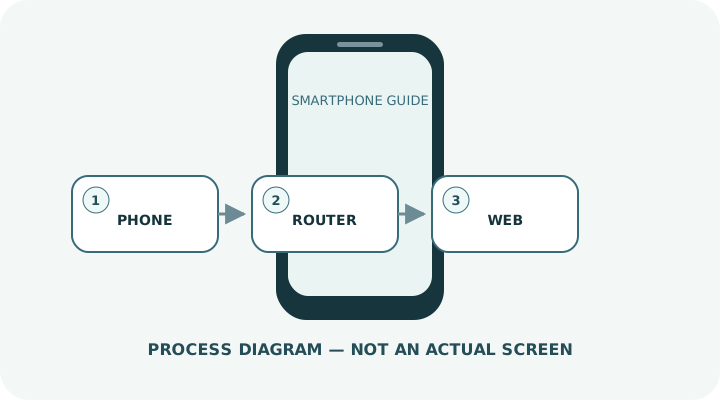
Understand which layer owns the behavior
Change one condition and retest
Work from the top and stop as soon as the issue is resolved. Read every confirmation screen before moving to a higher-impact action.
- 1Turn Wi-Fi off, wait about ten seconds and turn it on again.
- 2Select the network and re-enter the password, checking capitalization, similar characters and trailing spaces.
- 3If connected without internet, open a browser and look for a hotel or public-network sign-in page.
- 4Restart the phone and router; check with the administrator before unplugging managed equipment.
- 5If only one network fails, forget it and connect again.
- 6Consider resetting network settings only after simpler steps; saved Wi-Fi and Bluetooth settings may be removed.
Do not erase the evidence before isolating the cause
- Factory-resetting before identifying whether the phone or router is at fault
- Signing into sensitive accounts on an untrusted public network
- Restarting someone else’s router without permission
Prepare for a faster diagnosis next time
- Keep the home network name and password in a secure place
- Keep the phone OS and router firmware updated
Frequently asked questions
What if my screen looks different?
Labels and locations vary by OS, manufacturer, model and region. Use Settings search and check the manufacturer’s model-specific instructions.
What if I am unsure partway through?
Go back and confirm that no action has been committed. Do not proceed through an erase or account-change warning until you understand it.
What if the problem remains?
Test another connection or accessory where relevant, verify backups, then contact the manufacturer or carrier through official support.