
Start with “Know the passwords for Wi-Fi networks you need”
Do not begin with a broad reset. Check the following first so you can isolate the problem and avoid unnecessary data loss or reconfiguration.
- Know the passwords for Wi-Fi networks you need
- Know how to pair important Bluetooth accessories again
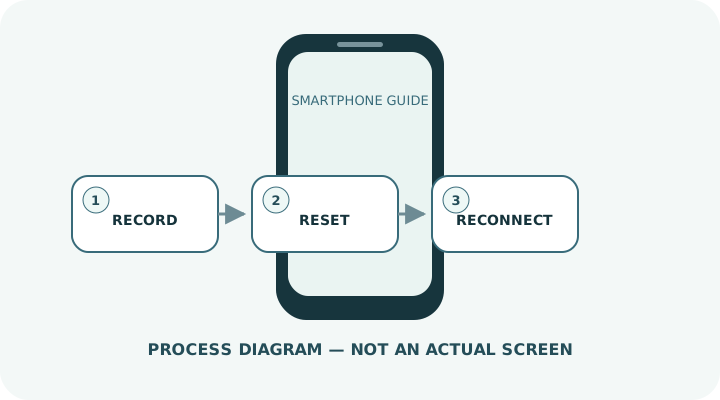
- Record VPN, APN, dual-SIM and related settings
Understand which layer owns the behavior
Change one condition and retest
Work from the top and stop as soon as the issue is resolved. Read every confirmation screen before moving to a higher-impact action.
- 1Try lower-impact steps first, including restart, Airplane Mode and forgetting only the affected Wi-Fi network.
- 2On iPhone, go to Settings > General > Transfer or Reset iPhone > Reset > Reset Network Settings; wording can vary by OS version.
- 3On Android, use Settings > System > Reset options and choose the Wi-Fi, mobile and Bluetooth reset; the path varies by manufacturer.
- 4Afterward, reconnect Wi-Fi and verify Bluetooth devices, VPN and cellular service one at a time.
- 5For managed phones or custom APN configurations, consult the administrator or carrier first.
Do not erase the evidence before isolating the cause
- Factory-resetting the whole phone for a network-only issue
- Resetting without knowing required Wi-Fi passwords
- Confusing an eSIM deletion with a network-settings reset
Prepare for a faster diagnosis next time
- Record important network settings securely
- Reconnect one item at a time to verify the result
Frequently asked questions
What if my screen looks different?
Labels and locations vary by OS, manufacturer, model and region. Use Settings search and check the manufacturer’s model-specific instructions.
What if I am unsure partway through?
Go back and confirm that no action has been committed. Do not proceed through an erase or account-change warning until you understand it.
What if the problem remains?
Test another connection or accessory where relevant, verify backups, then contact the manufacturer or carrier through official support.