
Start with “Identify whether the liquid was fresh water, salt water, a drink, or cleaning fluid”
Do not assume the cause from the symptom alone. First determine whether the issue affects the whole phone, one app, one connection, or one accessory. Work from low-impact checks toward recovery or repair.
- Identify whether the liquid was fresh water, salt water, a drink, or cleaning fluid
- Check for heat, swelling, odor, smoke, or leakage
- Review the manufacturer water-resistance conditions and warranty limitations
Separate “Identify whether the liquid was fresh water, salt water, a drink, or cleaning fluid” from “Check for heat, swelling, odor, smoke, or leakage”
| Scope of the issue | Where to check next |
|---|---|
| Only one app is affected | Check app permissions, updates, storage, cache, and reinstall options |
| The whole phone is affected | Check restart, system updates, free storage, and system settings |
| Other devices have the same issue | Check the network, service, charger, or accessory |
| The issue began after a drop or liquid exposure | Avoid repeated power or charging attempts and contact official support |
Diagnostic order for Phone Dropped in Water: Immediate Safety and Recovery Steps
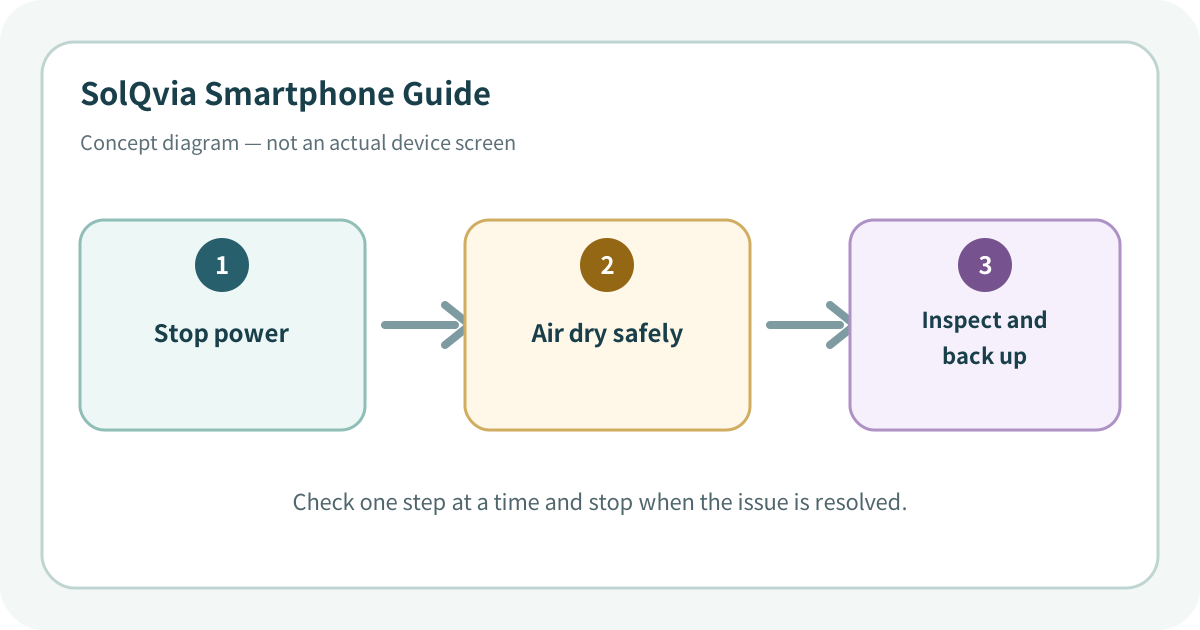
Use the lowest-impact sequence first
Complete one step at a time and test after each change. Do not change several settings at once.
- 1If safe, remove the phone from the liquid and disconnect charging cables and accessories. Do not continue handling a hot, smoking, or swollen device.
- 2Even if it still works, follow manufacturer guidance and power it off. Do not repeatedly turn it on merely to test it.
- 3Wipe the exterior with a soft dry cloth, hold the connector downward to drain surface liquid, and leave it in a dry ventilated place.
- 4If a liquid-detection warning appears, do not use wired charging until the connector has dried for the manufacturer-recommended time.
- 5Seek official or qualified service promptly for salt water, drinks, suspected internal entry, or irreplaceable data.
- 6After it is dry and stable, create a backup immediately and monitor heat, charging, camera fog, and battery behavior for several days.
Do not erase the evidence before isolating the cause
- Using rice, a hair dryer, microwave, oven, flame, or direct high heat
- Inserting paper, cotton swabs, or compressed air into the port
- Repeatedly charging or powering on immediately after exposure
Prevent the issue from returning
- Use a suitable case or strap near water
- Do not assume water resistance is permanent after aging, impact, or repair
Frequently asked questions
What if my screen looks different?
Menu names and locations vary by OS, manufacturer, model, region, and software version. Use the Settings search field and check the manufacturer guide for your exact model.
When should I stop troubleshooting?
Stop as soon as the issue is fixed. Change one setting at a time so you can identify what solved the problem and reverse it if necessary.
What should I do if the issue remains?
Record how to reproduce it, verify your backup, and contact the manufacturer, carrier, or app provider most closely related to the problem.
Did this guide help resolve the problem?
The response is used only to prioritize article improvements. No personal details or typed content are collected.
One response per article is recorded during the current browser session.