
Start with “Record how long the update has run and whether the progress indicator changes”
Do not assume the cause from the symptom alone. First determine whether the issue affects the whole phone, one app, one connection, or one accessory. Work from low-impact checks toward recovery or repair.
- Record how long the update has run and whether the progress indicator changes
- Keep the phone connected to a stable power source
- Check for abnormal heat, swelling, odor, smoke, or other battery danger signs
Separate “Record how long the update has run and whether the progress indicator changes” from “Keep the phone connected to a stable power source”
| Scope of the issue | Where to check next |
|---|---|
| Only one app is affected | Check app permissions, updates, storage, cache, and reinstall options |
| The whole phone is affected | Check restart, system updates, free storage, and system settings |
| Other devices have the same issue | Check the network, service, charger, or accessory |
| The issue began after a drop or liquid exposure | Avoid repeated power or charging attempts and contact official support |
Diagnostic order for Phone Update Stuck on Progress Bar or Rebooting: Safe Recovery St
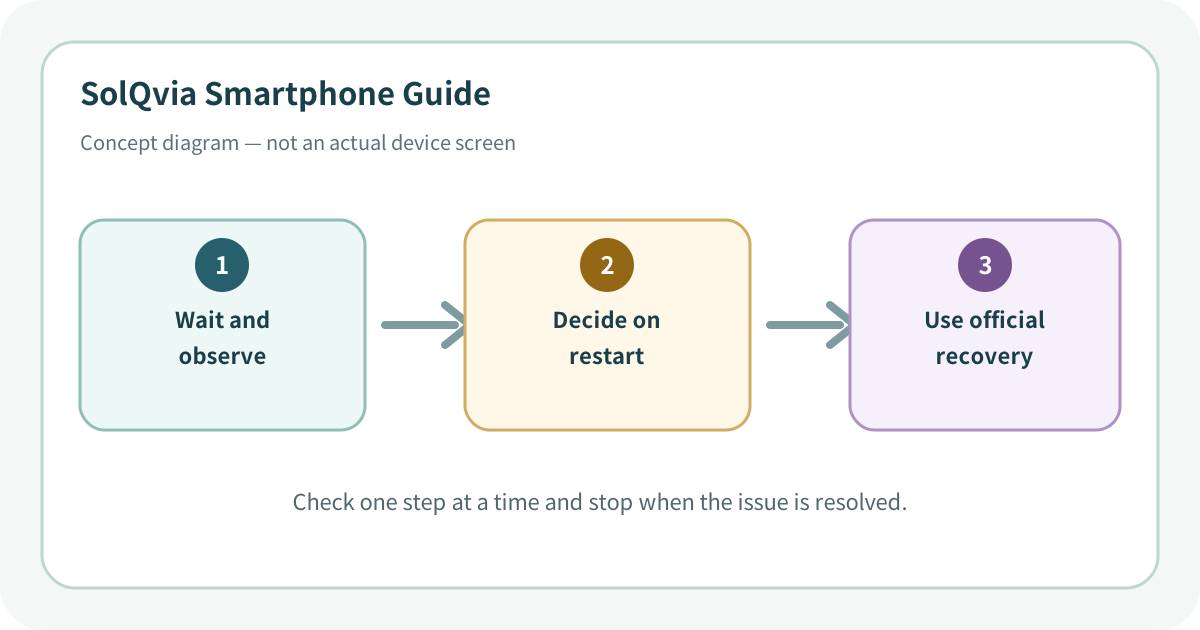
Use the lowest-impact sequence first
Complete one step at a time and test after each change. Do not change several settings at once.
- 1First leave the phone connected to power and wait. Large updates or low free storage can make progress appear stationary for a long time.
- 2Check for screen changes, vibration, normal warmth, or computer detection to distinguish active processing from a complete freeze.
- 3Only after the manufacturer-recommended waiting period and no response, use the exact model-specific forced restart procedure.
- 4If the phone starts normally, check storage, battery, Wi-Fi, and the error record, then create a backup before retrying.
- 5If it repeatedly returns to the logo or progress screen, use iPhone Recovery mode or the Android manufacturer’s official recovery process.
- 6When recovery offers Update versus Restore, read the data impact carefully and do not select an erase option without a verified backup.
Do not erase the evidence before isolating the cause
- Force-restarting repeatedly while the update may still be processing
- Letting the battery drain or repeatedly disconnecting power
- Using unofficial firmware-writing tools
Prevent the issue from returning
- Verify backup, storage, power, and Wi-Fi before updating
- Avoid critical timing and keep computer access and account credentials ready for recovery
Frequently asked questions
What if my screen looks different?
Menu names and locations vary by OS, manufacturer, model, region, and software version. Use the Settings search field and check the manufacturer guide for your exact model.
When should I stop troubleshooting?
Stop as soon as the issue is fixed. Change one setting at a time so you can identify what solved the problem and reverse it if necessary.
What should I do if the issue remains?
Record how to reproduce it, verify your backup, and contact the manufacturer, carrier, or app provider most closely related to the problem.
Did this guide help resolve the problem?
The response is used only to prioritize article improvements. No personal details or typed content are collected.
One response per article is recorded during the current browser session.