
Start with “Confirm that portrait orientation lock or rotation lock is off”
Do not assume the cause from the symptom alone. First determine whether the issue affects the whole phone, one app, one connection, or one accessory. Work from low-impact checks toward recovery or repair.
- Confirm that portrait orientation lock or rotation lock is off
- Test in a photo or video app that supports landscape orientation
- Hold and rotate the phone rather than leaving it flat on a table
Separate “Confirm that portrait orientation lock or rotation lock is off” from “Test in a photo or video app that supports landscape orientation”
| Scope of the issue | Where to check next |
|---|---|
| Only one app is affected | Check app permissions, updates, storage, cache, and reinstall options |
| The whole phone is affected | Check restart, system updates, free storage, and system settings |
| Other devices have the same issue | Check the network, service, charger, or accessory |
| The issue began after a drop or liquid exposure | Avoid repeated power or charging attempts and contact official support |
Diagnostic order for Phone Screen Will Not Auto-Rotate: Settings and Sensor Checks
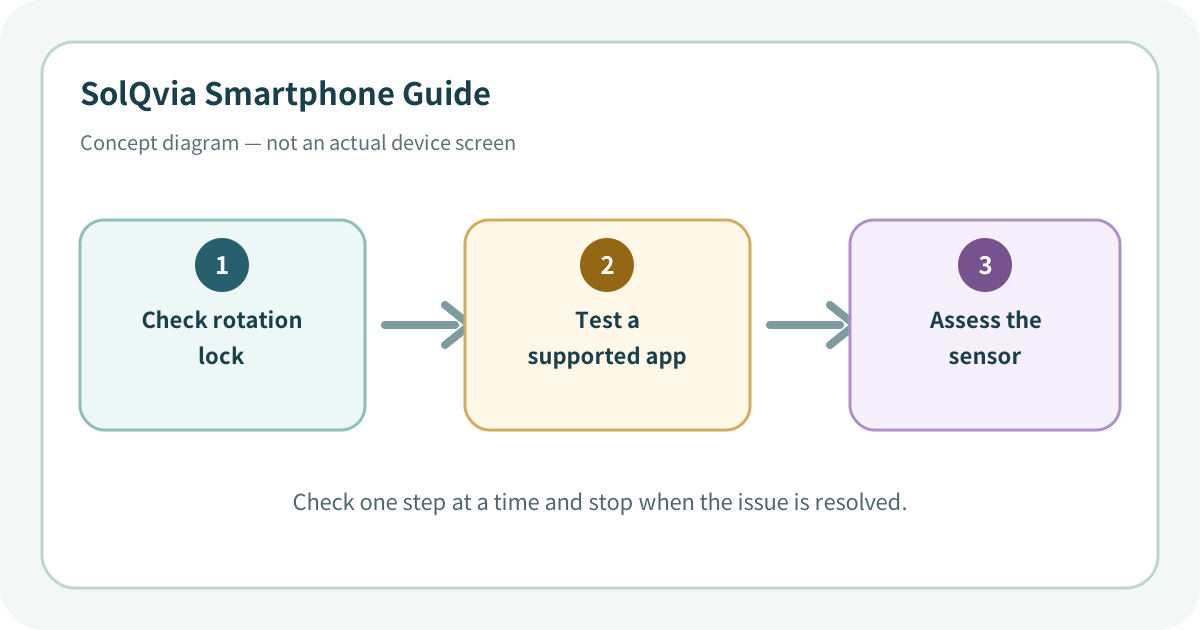
Use the lowest-impact sequence first
Complete one step at a time and test after each change. Do not change several settings at once.
- 1Open Control Center or Quick Settings and turn off portrait lock or enable Auto-rotate.
- 2Test with a built-in photo or video app known to support landscape mode.
- 3Fully close and reopen the affected app, then restart the phone if needed.
- 4Review accessibility, launcher, screen-pinning, one-handed, and display-management settings.
- 5On supported Android models, compare sensor diagnostics or Safe mode. On iPhone, check whether other motion-based apps behave normally.
- 6If rotation fails in several supported apps and began after impact, arrange hardware support for the orientation sensor.
Do not erase the evidence before isolating the cause
- Deleting an app before checking whether it supports rotation
- Shaking the phone forcefully
- Factory-resetting before confirming a sensor problem
Prevent the issue from returning
- Check the rotation-lock icon in quick controls when the symptom appears
- Remove magnetic cases or accessories when testing for interference
Frequently asked questions
What if my screen looks different?
Menu names and locations vary by OS, manufacturer, model, region, and software version. Use the Settings search field and check the manufacturer guide for your exact model.
When should I stop troubleshooting?
Stop as soon as the issue is fixed. Change one setting at a time so you can identify what solved the problem and reverse it if necessary.
What should I do if the issue remains?
Record how to reproduce it, verify your backup, and contact the manufacturer, carrier, or app provider most closely related to the problem.