
Start with “Confirm the cable supports data and is not charge-only”
Do not assume the cause from the symptom alone. First determine whether the issue affects the whole phone, one app, one connection, or one accessory. Work from low-impact checks toward recovery or repair.
- Confirm the cable supports data and is not charge-only
- Unlock the phone before and during connection
- Compare another cable, USB port, and computer
Separate “Confirm the cable supports data and is not charge-only” from “Unlock the phone before and during connection”
| Scope of the issue | Where to check next |
|---|---|
| Only one app is affected | Check app permissions, updates, storage, cache, and reinstall options |
| The whole phone is affected | Check restart, system updates, free storage, and system settings |
| Other devices have the same issue | Check the network, service, charger, or accessory |
| The issue began after a drop or liquid exposure | Avoid repeated power or charging attempts and contact official support |
Diagnostic order for Computer Does Not Recognize a Phone over USB: Data Connection Fix
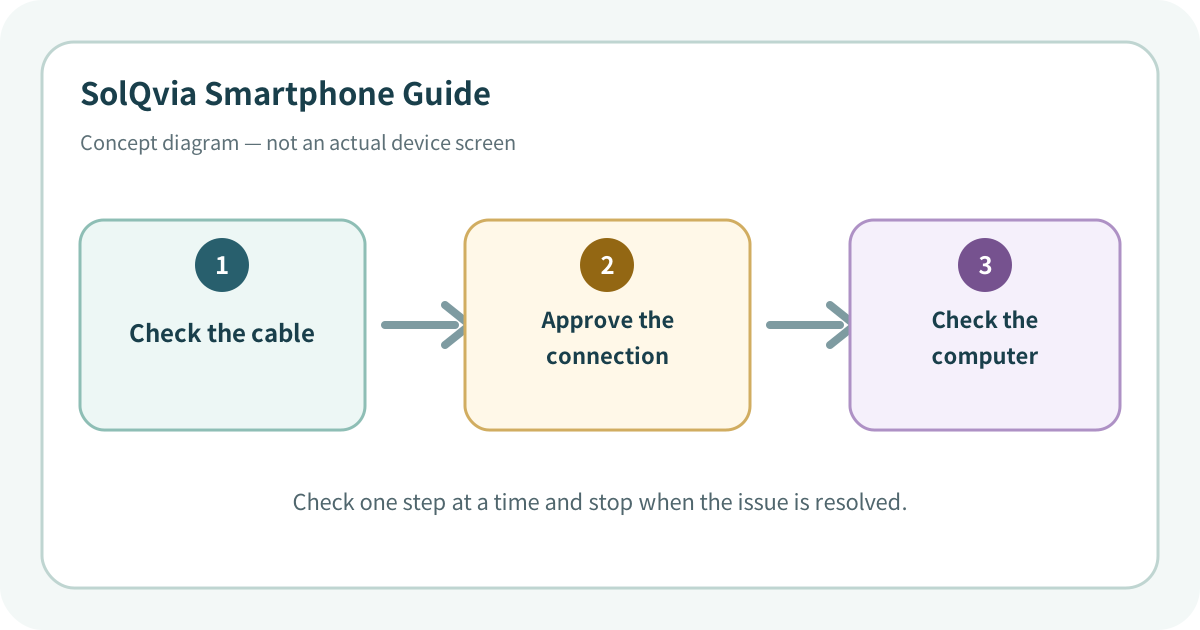
Use the lowest-impact sequence first
Complete one step at a time and test after each change. Do not change several settings at once.
- 1Restart both devices, remove USB hubs, and connect directly to a computer port.
- 2Use a known-good data cable and inspect the connector surface for debris, moisture, or damage.
- 3Unlock the phone. On iPhone accept Trust This Computer; on Android select File transfer or the required USB purpose.
- 4Update the computer OS, Apple device software, or official manufacturer USB drivers.
- 5For photos, compare official cloud sync or transfer apps so important data does not depend on one method.
- 6If several cables and computers fail and charging is also unstable, request hardware diagnostics for the port.
Do not erase the evidence before isolating the cause
- Connecting a cable to a wet port
- Cleaning deep inside the port with metal tools
- Installing USB drivers from an unknown website
Prevent the issue from returning
- Label or store data-capable cables separately
- Keep the port dry and clean and maintain a secondary cloud or computer backup
Frequently asked questions
What if my screen looks different?
Menu names and locations vary by OS, manufacturer, model, region, and software version. Use the Settings search field and check the manufacturer guide for your exact model.
When should I stop troubleshooting?
Stop as soon as the issue is fixed. Change one setting at a time so you can identify what solved the problem and reverse it if necessary.
What should I do if the issue remains?
Record how to reproduce it, verify your backup, and contact the manufacturer, carrier, or app provider most closely related to the problem.